Manage your business brand
Set the portal style, customer messages, dark-mode logo, and optional portal address.
Set the portal's appearance and wording
An Admin or Owner can open Setup and choose Brand. Under Appearance, choose Studio, Classic, or Bold from Type. The portal color is set separately in Organization settings.
Your words holds optional English and Spanish greetings and sign-offs. Each field accepts up to 160 characters; an empty field uses the service's standard wording. Show Powered by ScapeLogic controls the attribution in the customer portal and emails.
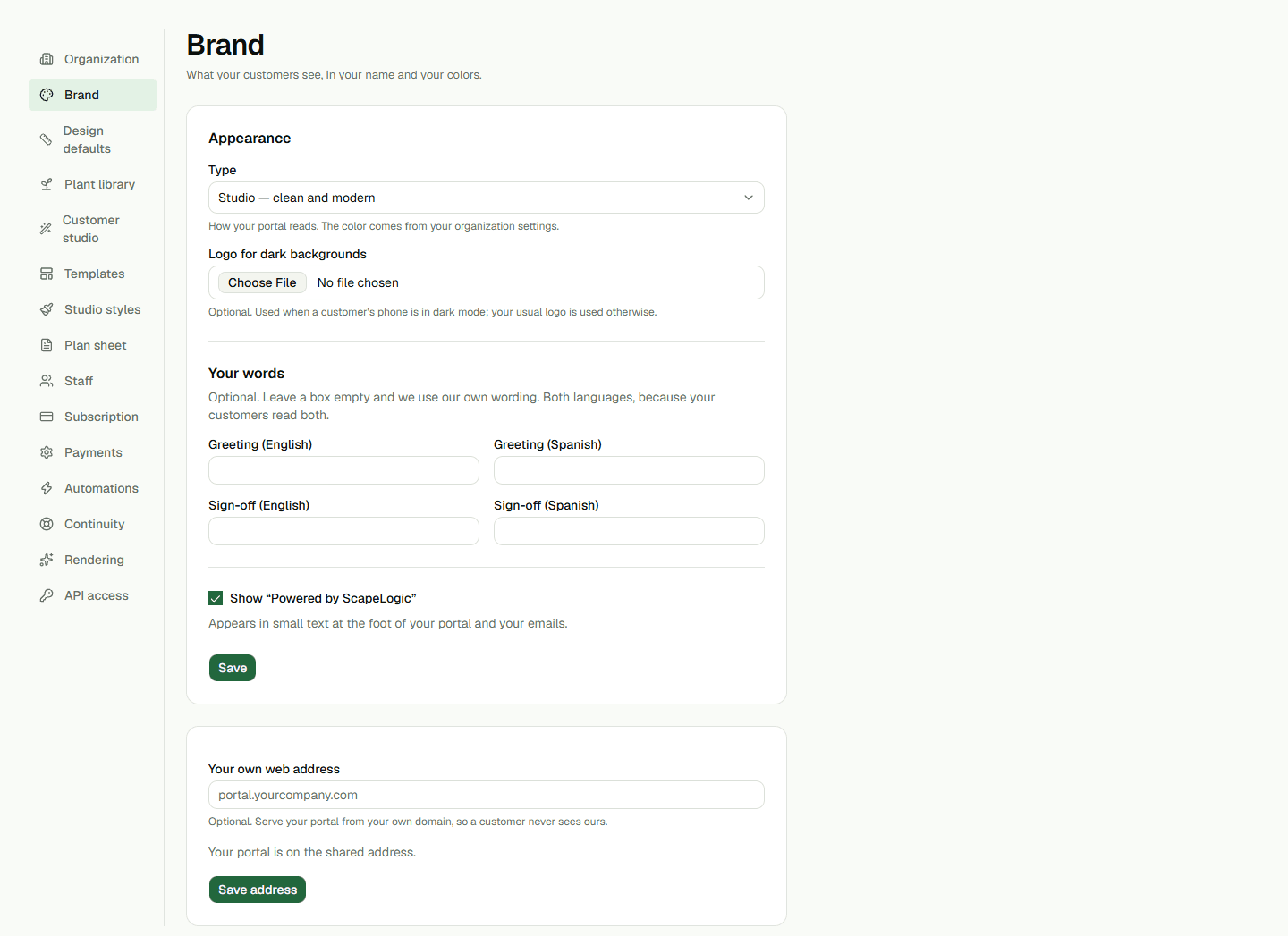
- Choose a Type and, if needed, select a PNG, JPEG, WebP, or SVG logo for dark backgrounds. The optional file limit is 2 MB.
- Enter the English and Spanish greeting or sign-off you want customers to see.
- Choose Save. The saved dark-mode logo appears beside its field; there is no separate preview button.
Connect an optional portal address
In Your own web address, enter a hostname such as portal.yourcompany.com and choose Save address. The status says whether the shared address is in use, DNS is pending, or the custom address is live. Saving the hostname alone does not make it live.
When the page is waiting for DNS, add the displayed record at your domain provider and choose Check it. If the check is unavailable or the status remains pending, ask your administrator for help. Choose Remove and confirm to return to the shared address.