Manage assemblies in the Price Book
Build the material and labor recipes used to price measured work.
Create an assembly
Open Price Book and choose Assemblies. A Dispatcher or higher can create the recipes used to price measured work. Choose Create assembly, enter a name, and choose the unit it is sold per.
Units per crew-hour describes how many units one crew-hour completes. Leave it blank for flat-price work. You may also select a Labor item, tag the maintenance job it prices, and add notes. Leave the maintenance-job field blank when the assembly is not a care-calendar job.
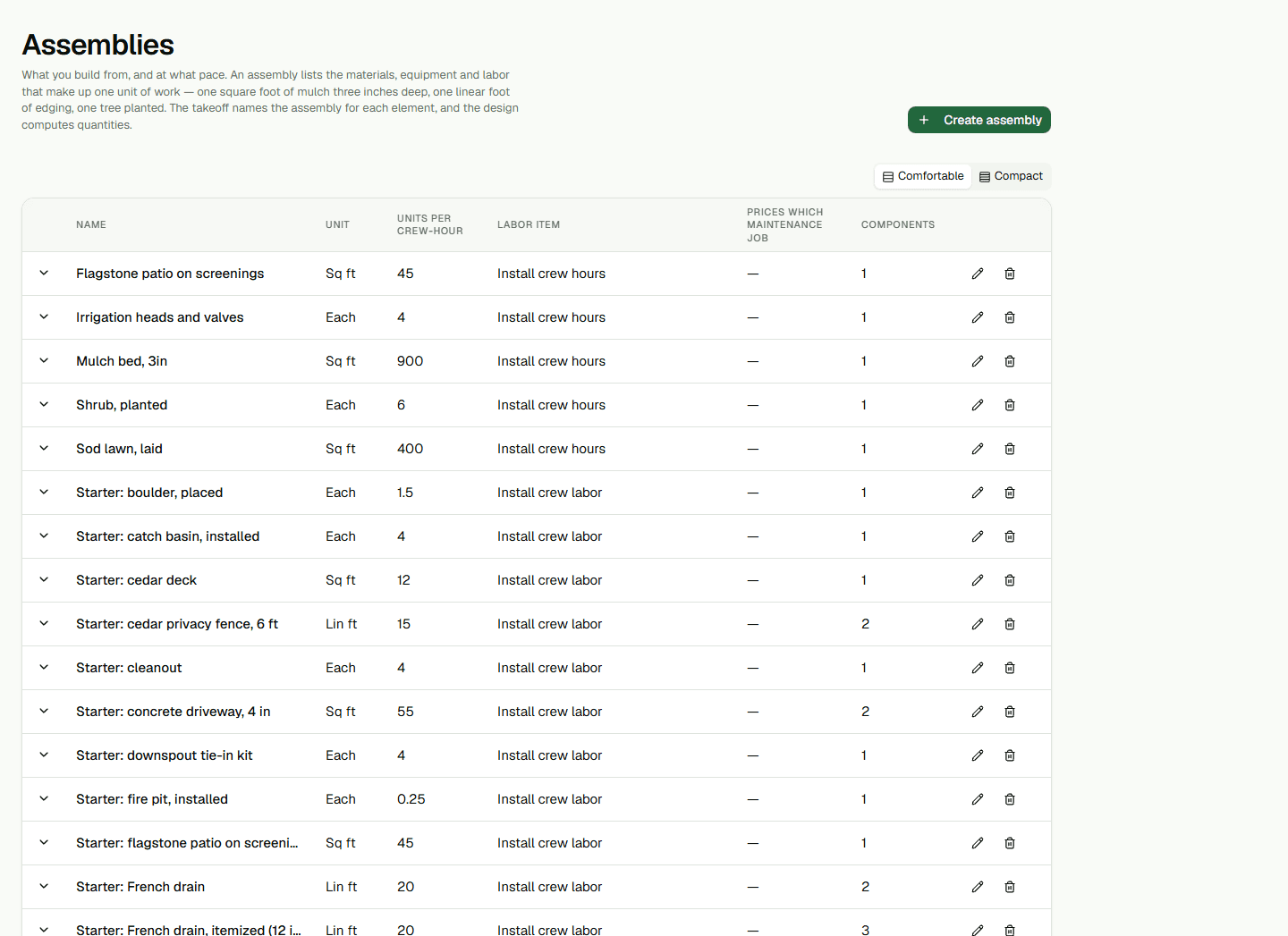
- Choose Create assembly and enter its name and sold-per unit.
- Add a production rate, labor item, maintenance-job tag, or notes when they apply.
- Save the assembly, then expand it to review or add its components.
Add and review components
Choose a price-book item, enter Quantity per unit and Waste factor, and add optional notes. For a cubic-yard item, the form also offers Depth (inches) to calculate quantity. Removing a component removes that line from the assembly; the item stays in the Price Book.
The production rate is units completed per crew-hour. A selected labor item supplies the hourly rate used for labor. Component quantities and waste factors describe the recipe; they are not an assembly cost total. Only one assembly can price a maintenance job, so a conflicting save is refused.
Edit or delete carefully
Choose Edit to change an assembly's name, unit, rate, labor item, maintenance-job tag, or notes. Delete permanently removes the assembly and its component list. Existing quote and drawing lines remain but lose their link to the deleted assembly. This page has no retire or clone control.