Organize office files
Find, preview, file, archive, and restore documents in the office library.
Choose a view and find a file
Dispatchers and higher office roles can open Files. Unfiled is the inbox for documents not yet associated with a customer, property, or project. Choose All files to search the library, or Folders to browse the imported folder tree. The inbox opens first while it has unfiled documents; otherwise the page opens All files.
In All files, search by document name or its original folder. Choose a Kind to narrow the list, or Include archived to show archived items. Results are newest first; use Newer and Older when there is more than one page. In Folders, choose a folder and follow the breadcrumbs.
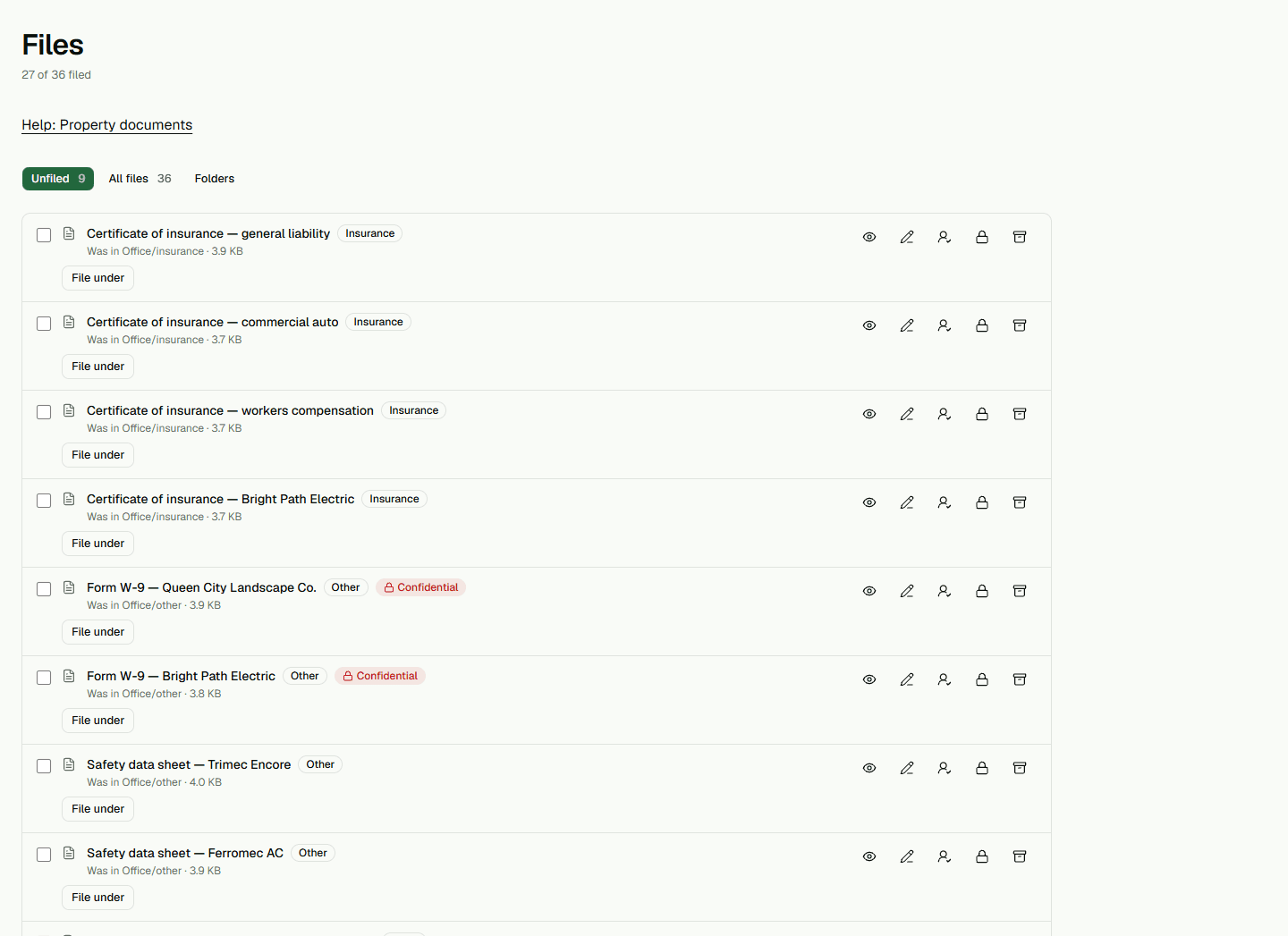
File or review a document
Choose File under and search for a Customer, Property, or Project, then select the intended record. Review any filing suggestion before accepting it; suggestions can offer Accept, Pick…, or Not this. Choose Return to the inbox to remove an association. A file added from this page stays unfiled until you organize it.
Choose Preview when the file type can be shown here. Otherwise choose Download and open it in a suitable program. Choose Rename to change the name or kind, then Save.
Archive, restore, and protect
Archive removes a file from the normal list but does not delete it. Turn on Include archived and choose Put back to restore it. There is no permanent-delete control on this page.
Confidential-file controls are for Admins and Owners. Show the client is a separate setting that changes whether an eligible file is visible to the client; check the file and its record before changing it. Studio drawings are managed separately.