Record measurements during a site visit
Record rectangular, triangular, circular, linear and counted measurements on a site visit, then confirm saved rows and totals.
Before you start
For Dispatchers: open the property's site visit and record the shape and measurements you read from the tape. This form saves measurements to the visit; Studio drawings and quotes are a separate workflow.
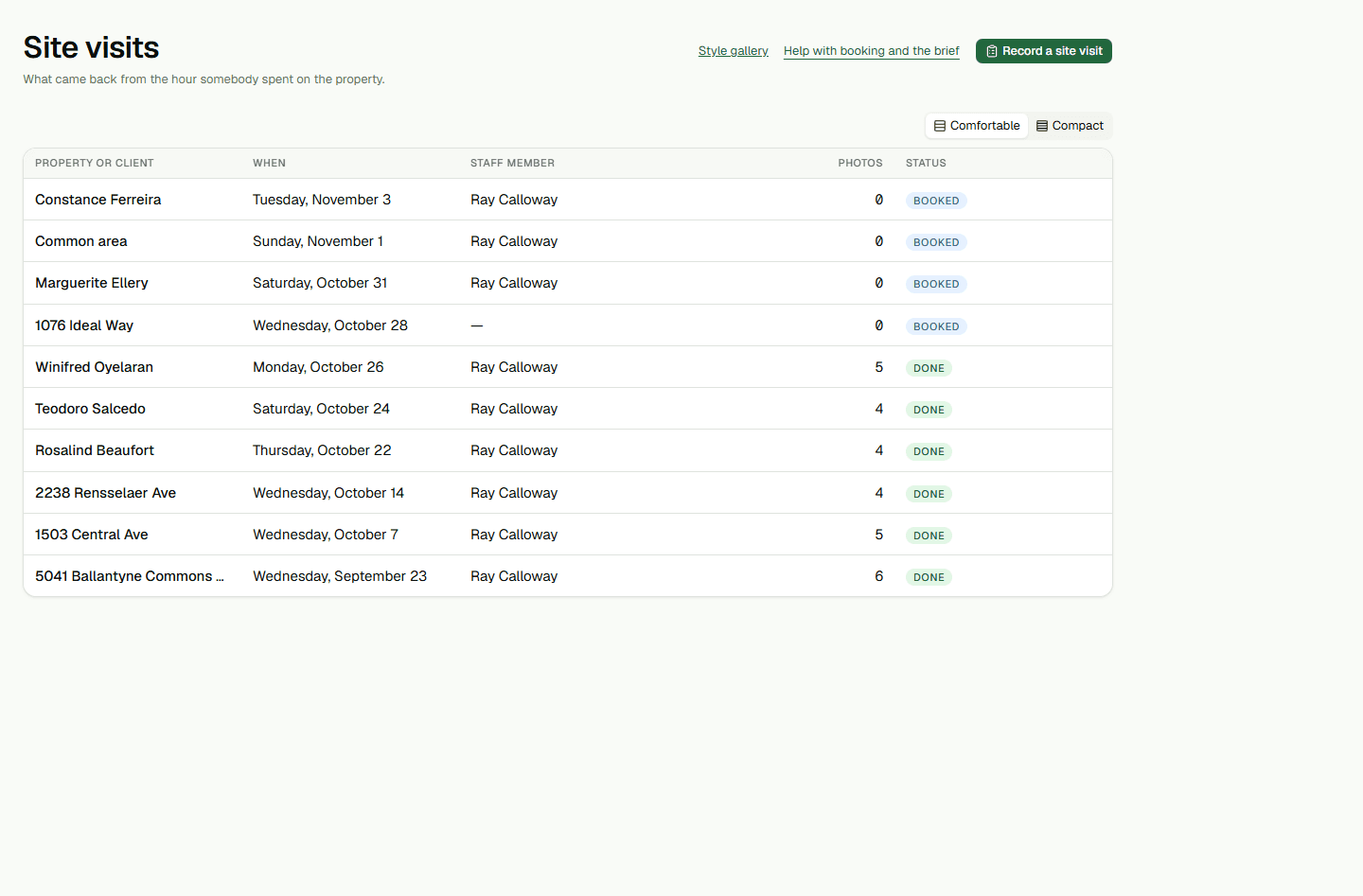
- Open Site visits and select the visit for the property.
- Under Measure something, enter a short name in What is it, then choose a Shape.For example, enter Front bed as the name.
Enter the tape measurements
Choose the fields that match the selected Shape. Enter positive measurements in feet and use How many for the number of matching areas or items. Count has no dimension fields; its How many value is the item count.
- For Rectangle, enter Length (ft) and Width (ft); for Triangle, enter Base (ft) and Height (ft).The area examples are 8 × 5 × 2 = 80 sq ft for a Rectangle, and 10 × 6 × 2 ÷ 2 = 60 sq ft for a Triangle.
- For Circle, enter the across measurement in Across (ft); for Run, enter Length (ft).Across a circle is its diameter. A 6 ft diameter with How many set to 2 contributes about 56.55 sq ft, displayed as 57 sq ft; a 12 ft Run with How many set to 3 contributes 36 ft.
- For Count, enter the number of items in How many; dimensions are not needed.A How many value of 5 records 5 items.
Save and confirm the totals
Choose Add measurement. The visit shows the saved row with its dimensions and calculated amount. Reload the same visit to confirm the saved row and totals remain visible.
The page keeps separate totals for area, length and item counts. It adds unrounded area values before rounding the area total once, so the total may not equal the sum of individually rounded area amounts shown beside rows.
These site-visit measurements remain with the visit. They do not automatically become a Studio drawing or quote.