Manage the Plant library and palettes
Browse species, maintain your own plant entries, and group plants into Studio palettes.
Browse the Plant library
Open Setup and choose Plant library. An Admin or Owner can search shared species and your organization's entries by common or botanical name. Rows are marked Shared or Yours. When a hardiness zone is available, Only plants that suit this zone starts on; the zone is estimated from your properties. Turn the filter off to see everything. It is a guide, not a guarantee for a particular site.
If the zone is unknown, the filter is unavailable. Plants without zone limits remain in the filtered list. Shared species are read-only on this page.
Add one of your plants
Under A plant of your own, enter the common name and choose a Habit. Botanical name, spread, spacing, and minimum and maximum hardiness zones are optional. Choose Add. Only your organization's entries have an Edit control; shared species are read-only, and this page has no retire or delete control.
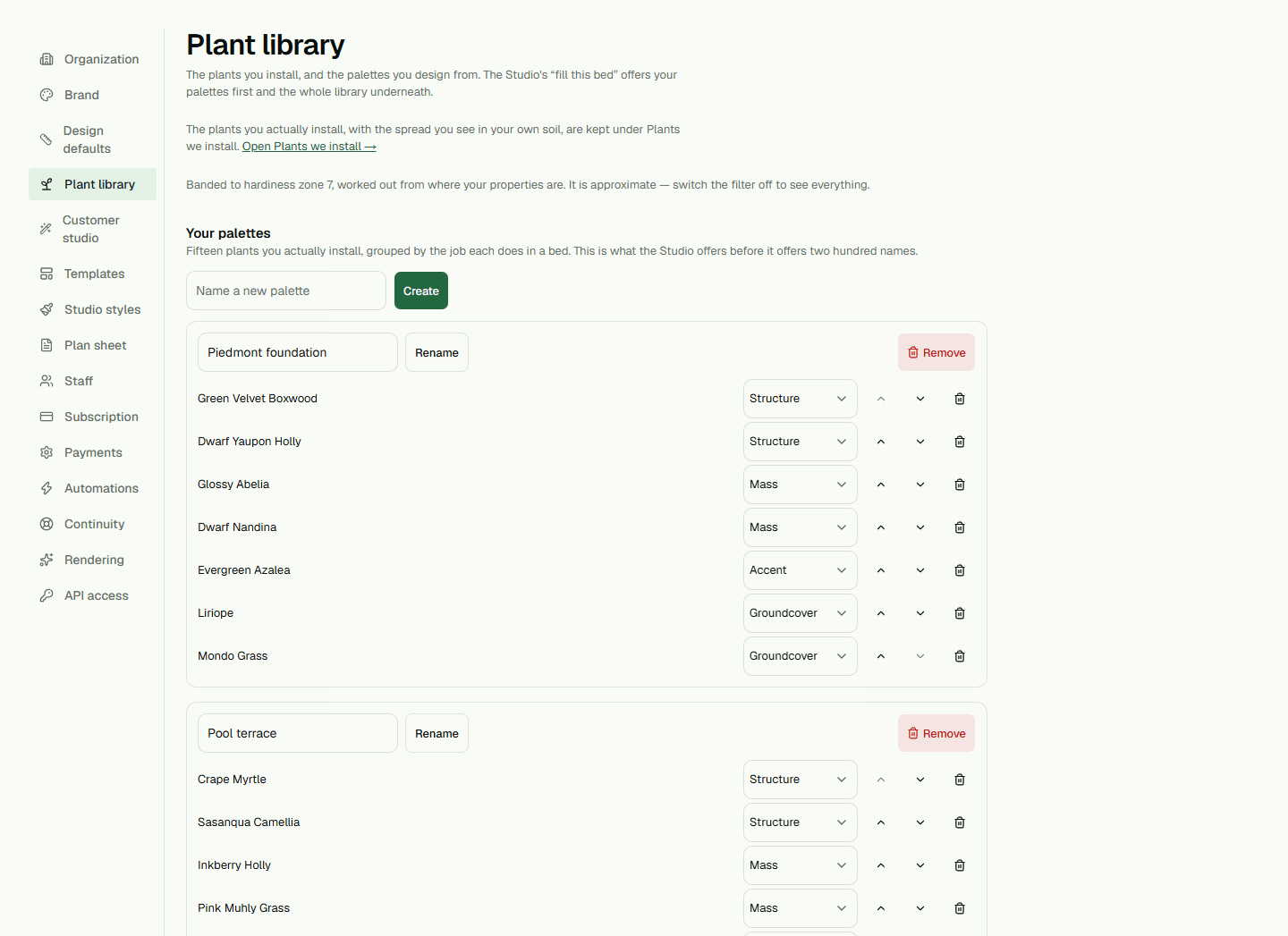
Build a palette
Under Your palettes, enter a name and choose Create. In the library, choose Add to… on a plant row and select a palette. A new member starts in the Mass role. Within a palette, you can rename or remove it, change a member's role, move the member up or down, or remove the member. Each control saves its own change; there is no save-everything button.
Studio's Fill with plants… offers your palettes before the full library. Plants we install is a separate list of plants your organization actually installs.