Schedule and recover a one-off job
Schedule a single visit, skip it when needed, then reopen and place it on a crew and day.
Schedule one job
A one-off job is for work that should happen once, such as an installation, callback, or storm cleanup. Leave the crew unassigned when Dispatch should place it later.
- Open the property and expand New one-off job in its overview.
- Choose the Work and Day. The day must be today or later.
- Add What needs doing if the crew needs a note. Leave Price (optional) blank to use the service price, or leave Put it on a crew (optional) at Decide each time to place the visit later.
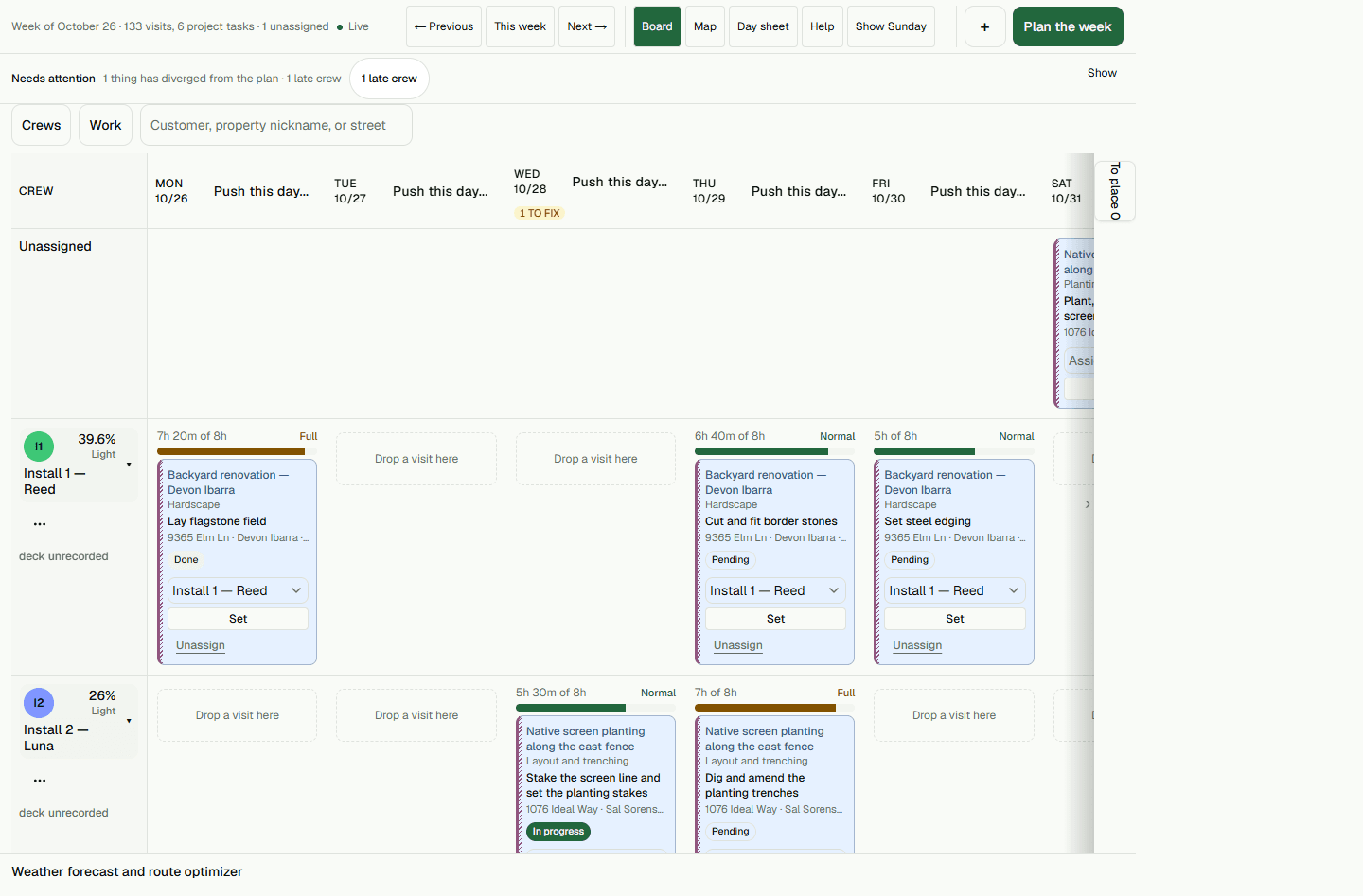
- Select Schedule this job, then reload the property to confirm it was saved.In Dispatch, open the week containing the visit and choose To place to find an unassigned visit.
Skip a visit before work starts
Skip is available for a pending or assigned visit dated today or later. Give a short, useful reason so the office can understand what happened.
- In Dispatch, open the visit's Inspector and select Skip.
- Enter a reason and select Skip it.
- Open Skipped / part-done to confirm the visit is listed.Skipping records that the visit was skipped; it does not mark the work complete.
Reopen and reschedule a skipped visit
An administrator or owner can reopen a skipped visit. A dispatcher can then place it on a crew and day. The original promised window remains visible after the move.
- Open the skipped visit in Dispatch, select Correct, set it to Not scheduled under Set it to, enter a reason under Why, and select Change it.
- As a dispatcher, find the visit in To place, select Move, then choose a crew and day.
- If the day is outside the original Promised window, read the refusal. If Move anyway is offered, enter a reason and choose it to record the exception.
- Reload Dispatch and confirm the visit is on the selected crew and day.The Promised window still shows the original dates.