Set a property's map location
Find a matching address when creating a property, or update and confirm the saved location on an existing property.
Create a property
For Dispatchers: select an existing customer and use the address on the customer's records. Review the address match and selected location before saving.
- On New property, select a Customer and enter Street address, City, State and ZIP.
- Choose Find on the map and review the matching addresses.
- If the search selects one location, check its address and map point. If several matches appear, choose Use this one beside the correct address, then check the selected map point.
- Choose Create property.
If the map is still loading
If the map still shows its loading message, wait. If a loading problem appears, the selected point is kept. Switch to Streets to review the map, then confirm the address and selected point before choosing Create property.
Update an existing property's address
You can change an address from the property page and confirm the saved result after reloading it.
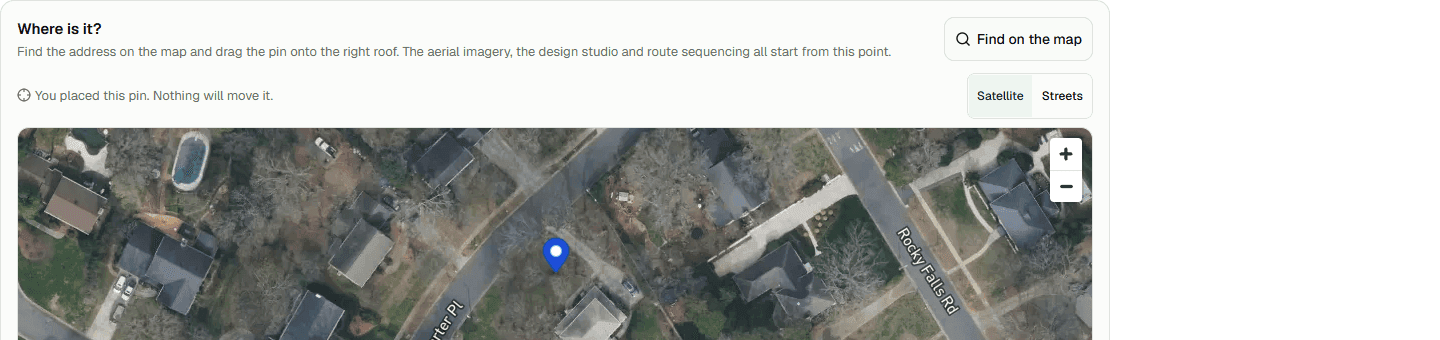
- Open the property and choose Edit address.
- Enter the updated Street address, City, State and ZIP, then choose Find on the map.
- If the search selects one location, check its address and map point. If several matches appear, choose Use this one beside the correct address. Confirm the selected address and map point before saving.
- Choose Save changes, reload the property and confirm the updated address remains.
- Choose Open the Studio to continue. For a property without an existing design, Studio first asks what you want to design.